
Introduction
SRE lets service designers test a service logic directly in the GUI, before and after it is put into production. The same tools are used to build a set of test cases, to check that a change does not break existing behaviour, to investigate a live call and to return to a previous version when needed. The SRE Product Description explains why in-GUI validation replaces most real-call testing.
This document describes how these tools work in practice: simulation on each interface, the simulation timeline, saved simulations used as regression tests, per-call tracing and node logging, and the version life cycle of a service logic with its change log and rollback. It ends with an example that combines them.
No specific licence is required for these tools. They are available in the Service Logic Editor for every service logic, subject to the user's access rights.
Simulating a Service Logic
How a Simulation Runs
A simulation executes the service logic on the Element Manager with input entered in the GUI, instead of a request received from the network. The nodes run as they would on a Call Processor: data model queries are made against the database, and requests to external systems such as HTTP servers are sent. For nodes that query external systems, such as the HTTP and ENUM query nodes, the request sent is recorded with the step, so the designer can see exactly what was asked.
After a run, the editor shows the path taken through the service logic:
- Each executed node gets a step number, in black when the node succeeded and in red when it failed.
- Animated lines show the links followed from node to node.
- Hovering over a step number shows the variables before and after that step. Clicking it opens the full call descriptor for the step.
By default, the simulation starts in the service logic being edited. It can also start from a parent service logic, up to the main one, so that a sub-logic can be tested either on its own or in the context of the complete flow.
One Tab per Interface
The Service Logic Editor offers a simulation tab for each type of input that SRE processes:
| Tab | Input provided | Typical use |
|---|---|---|
| Simulate call | Calling and called numbers, counter | Quick test of number-based routing |
| Simulate SIP | Full SIP message, source and destination address and port, status of the SIP agents, counter | SIP routing, header manipulation, crank-back |
| Simulate ENUM | Number and ENUM zone | ENUM server logic |
| Simulate HTTP | Method (GET, POST, PUT, PATCH, DELETE), path and body | REST endpoints exposed by SRE |
| Simulate CDR | One CDR as a CSV line | CDR post-processing |
| Simulate Media | Calling number and event (call start, DTMF digit and direction, end of playback, call originated, timeout) | IVR and announcement logic |
| Simulate WS | WebSocket message | Processing of WebSocket messages (from SRE 4.2) |
The Simulate ENUM tab is hidden by default and can be enabled by Netaxis support.
A few options support specific cases:
- SIP agent status. Routing decisions often depend on whether a peer is up or down. In the Simulate SIP tab, the status of the SIP agents can be loaded from a Call Processor, or set manually for each agent, to test the behaviour when a route is unavailable.
- Crank-back. The counter simulates a first attempt (0) or a subsequent attempt (1, 2, and so on) after a failure. With Persist call descriptor, the variables computed in earlier attempts are kept, as they would be for a real call.
The SIP simulation covers the processing of the initial request (INVITE). Nodes that act later in the call, such as accounting at the end of the call, are tested with a SIP call simulator or a real call.
Simulating with Custom Variables
Before running a simulation, the designer can set additional variables with a name, a type and a value. The supported types are string, integer, float, date, JSON and list of records.
This is mainly used to test a sub-logic on its own. A sub-logic usually relies on variables set by its parent, such as the customer record retrieved at the start of the call. Instead of simulating the whole call from the top-level logic, the designer provides those variables directly and simulates only the sub-logic. Custom variables were introduced in SRE 4.1.
The Simulation Timeline
The simulation timeline is a table shown below the service logic after a run. It has one column per step, with:
- the step number and the node name,
- the time taken by the step and the cumulative time since the start,
- the value of every variable after the step.
Values that a step changes are highlighted, and variables set for the first time are shown in a different colour. Hovering over a step in the service logic moves the timeline to that step.
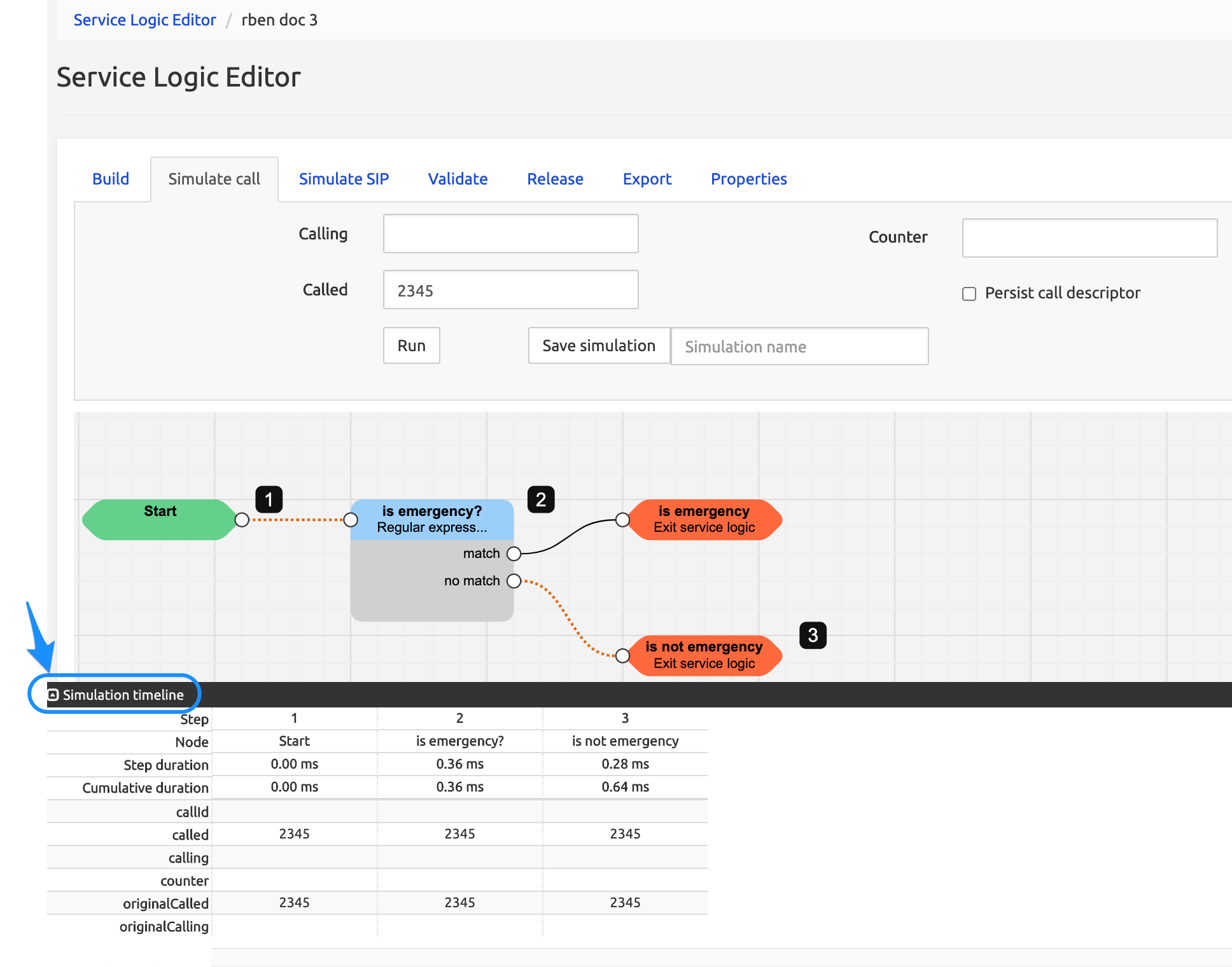
The per-step durations help to find slow parts of a logic, for example an external query that takes most of the processing time.
Saved Simulations and Regression Testing
Saving a Simulation
Any simulation can be saved under a unique name, on every simulation tab. A saved simulation keeps the input and the result: the output variables and the response returned by the service logic.
A saved simulation is not tied to the service logic it was run with. It can be run against another version of the same service logic, such as the development version and the current release. This is what makes saved simulations usable as a regression baseline.
Replaying Against the Baseline
The Validate tab lists the saved simulations. For each one, the designer can:
- Load it into its simulation tab, to run it again or change some values.
- Replay it against the current service logic. SRE runs the same input, compares the new result with the saved one and states whether they are equal. Differences in the input and output variables are highlighted.
Simulations can be organised in groups, and a whole group can be replayed at once. Replaying the group after a change shows, simulation by simulation, whether the results still match the baseline.
Exporting and Importing
Saved simulations can be exported to a file, either all of them or only those matching the current search filter, and imported on another SRE system. The import can include the simulation groups, and offers to skip existing names or to add a suffix to them. This allows the same test set to be used on a lab platform and in production.
Access Rights
Simulation has its own access right in the role definitions, so a user can be allowed to run simulations on a service logic without being allowed to edit it. Saving simulations requires write access to simulations.
Tracing Live Calls
Per-Call Tracing
Simulation shows how a service logic behaves with input chosen by the designer. Tracing shows how it behaved with a real call. Tracing is activated on criteria, so that only the calls of interest are recorded:
| Interface | Tracing criteria |
|---|---|
| SIP and SIP replies | Calling and called number prefixes |
| ENUM | Number prefix |
| HTTP | Request URL |
| CDR post-processing | From and To user names |
Tracing must also be enabled with the service logic flow log level. Because tracing records each step of the call, it has a cost on the Call Processors, and criteria should be kept as narrow as possible in production. SRE keeps a limited number of traces (100 by default) and replaces the oldest ones when the limit is reached. Since SRE 4.0, traces are stored on both Element Managers and are kept when the Element Manager process restarts.
Traces in the Service Logic Editor
Traced calls appear in the Traces tab of the active service logic and of its sub-logics, with live updates as new calls arrive. For each trace, the user can:
- view the input and output call descriptor and the result of the execution,
- Show the trace: the path of the real call is drawn on the service logic, with the full simulation timeline, as if the call had been simulated,
- Load the trace into the simulation tab (SIP, ENUM and HTTP).
Loading a trace fills the simulation form with the data of the real call, for example the complete SIP message with its addresses and counter. The designer can then run it again, change the service logic until the issue is fixed and save it as a new test case. This feature was introduced in SRE 4.1.
Node Logging
Every node has an optional Log message in its Logging section. The message can include variables, such as call type IVR from [calling], and is evaluated after the node has been executed.

The resulting lines are added to the one-line summary that SRE writes for each request when the call summary log is enabled. This records the decisions taken for each call, such as the route chosen, without tracing every step. The summary log is part of the logs collected on the Element Manager, and can be viewed in the GUI log viewer. Logs can also be written in structured formats (logfmt or JSON) for tools such as Elasticsearch, Splunk or Graylog. Node logging was introduced in SRE 4.1.
Versions, Change Log and Rollback
Development and Releases
A service logic exists in two forms:
- Development versions remain editable. Changes are saved automatically.
- Releases are frozen, non-editable copies created from the Release tab, with a name and a description. A tag with the release name is added to the service logic and its sub-logics.
A release can be instantiated to create a new development version from it, for example to start the next change from what is in production.
Change Log
The Changelog tab compares the current version, development or released, with a previous release of the same service logic. It lists the changed node parameters, the added and removed nodes and the changes to the links between nodes. Each changed node can be opened from the list. It is used to review a change before releasing it.
Activation and Rollback
The Service Selection page defines which service logic version is active for each interface and endpoint. Activating a new release means selecting it in the list and saving. The change is distributed to all Call Processors and applies to new requests; it can take up to 60 seconds to reach every element.
Because the previous release remains available and unchanged, rolling back is the same operation: select the previous release and save.
A different version can also be set for a single Call Processor, using the node override. This allows a new release to be put on one Call Processor first, while the others keep the current release.
Example: Changing a SIP Trunking Service
A service provider wants to change its SIP trunking logic so that calls to premium-rate numbers are rejected for customers who have not subscribed to them.
- Baseline. A group "SIP trunking" already contains saved SIP simulations for the main scenarios: on-net call, call to a mobile number, international call allowed and refused, suspended customer, primary trunk down with fall-back to the backup trunk.
- Change. The designer creates a development version from the current release and adds a branch that checks the premium-rate prefix against a new column in the customer table.
- Unit test. The new branch sits in a sub-logic. The designer simulates it alone, setting the customer record as a custom variable, once with the option enabled and once without. The timeline confirms which branch is taken.
- New test cases. Two SIP simulations, a premium-rate call with and without the option, are run from the top-level logic and saved in the group.
- Regression. The whole group is replayed against the development version. All existing scenarios give the same result as before.
- Review and release. The change log against the current release shows only the added nodes and links. The designer creates a release.
- Activation. The release is first set on one Call Processor with the node override, then activated for all.
- Investigation. A customer reports a rejected call. Tracing is activated for the customer's number range, the call is captured and loaded into the Simulate SIP tab. The cause is found in the customer's data, not in the logic. If the logic had been at fault, selecting the previous release in Service Selection would have restored the previous behaviour.
The service logic is described in more detail in the Service Logic Editor guide. Tracing settings are described in the Administration guide.